 little ummah cards
Got a new Yoto? Setting it up for Qur'an and du'as
The Yoto basics I wish I'd known on day one, with an eye on Qur'an, du'as and a home that keeps to voice-only audio.
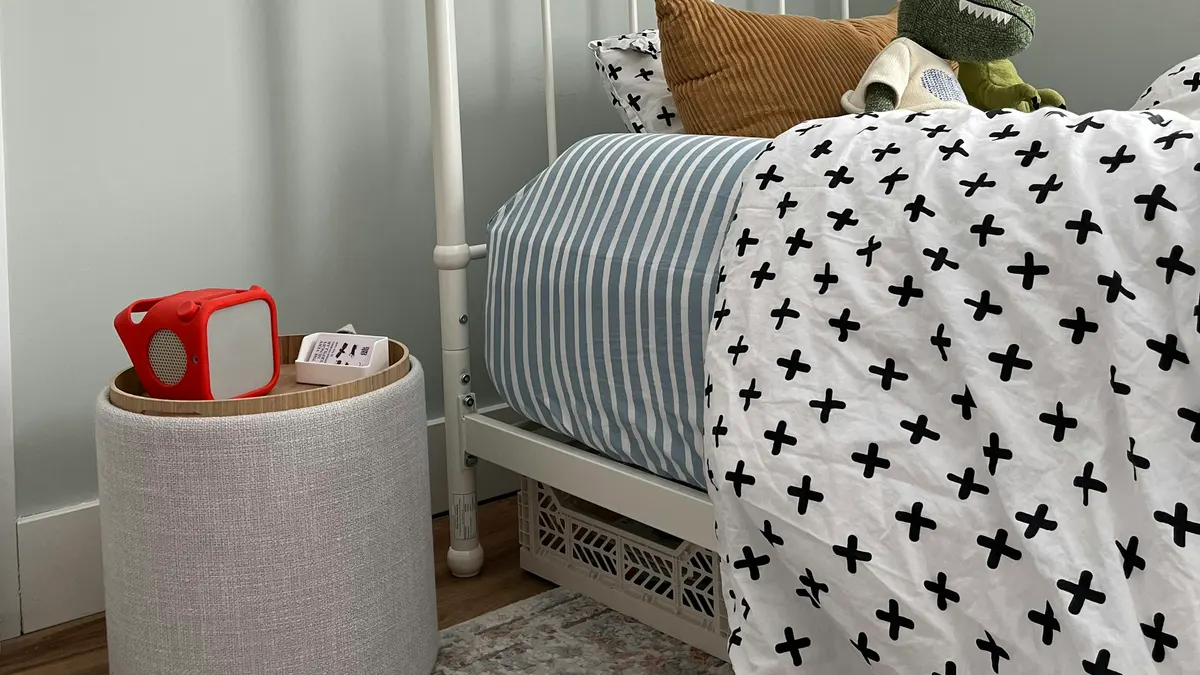
Lots of children unwrap a Yoto in December, and the in-app instructions get you as far as linking the player to your account. After that you're mostly on your own. These are the things I've learned since, with an eye on what matters in a Muslim home, like getting Qur'an and du'as to play reliably and keeping music out if your family avoids it.
A card doesn't hold any audio
Cards look a bit like cassettes, so it's natural to think the recitation lives on the card. It doesn't. A card only tells the player which audio to play, and the audio itself sits on Yoto's servers until the player downloads it.
That's why a new card needs Wi‑Fi the first time. The first play streams over the internet, with a little delay, the way Spotify or YouTube would. Once the player has downloaded it, the card plays from the player's own memory, straight away and without Wi‑Fi. The Gen 3 player and the 2024 Mini both have 32GB of storage, which is a lot of recitation.
So before a long drive to see family, or before Ramadan when you'll want the surah cards working everywhere, make sure they're downloaded:
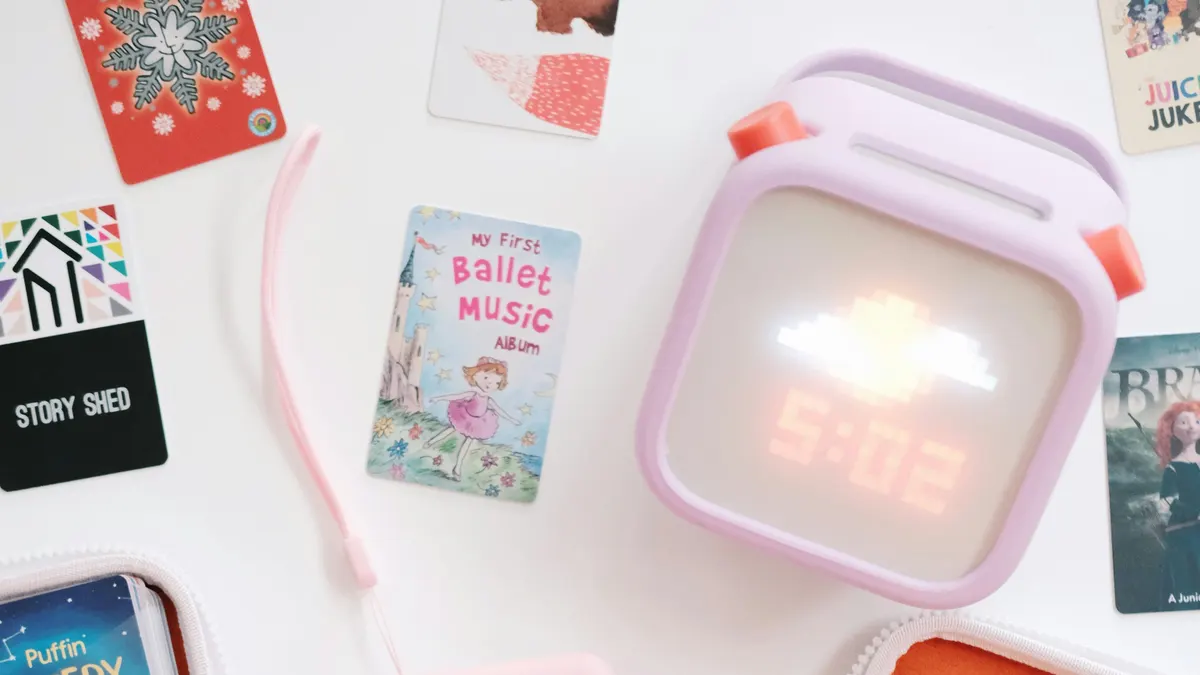
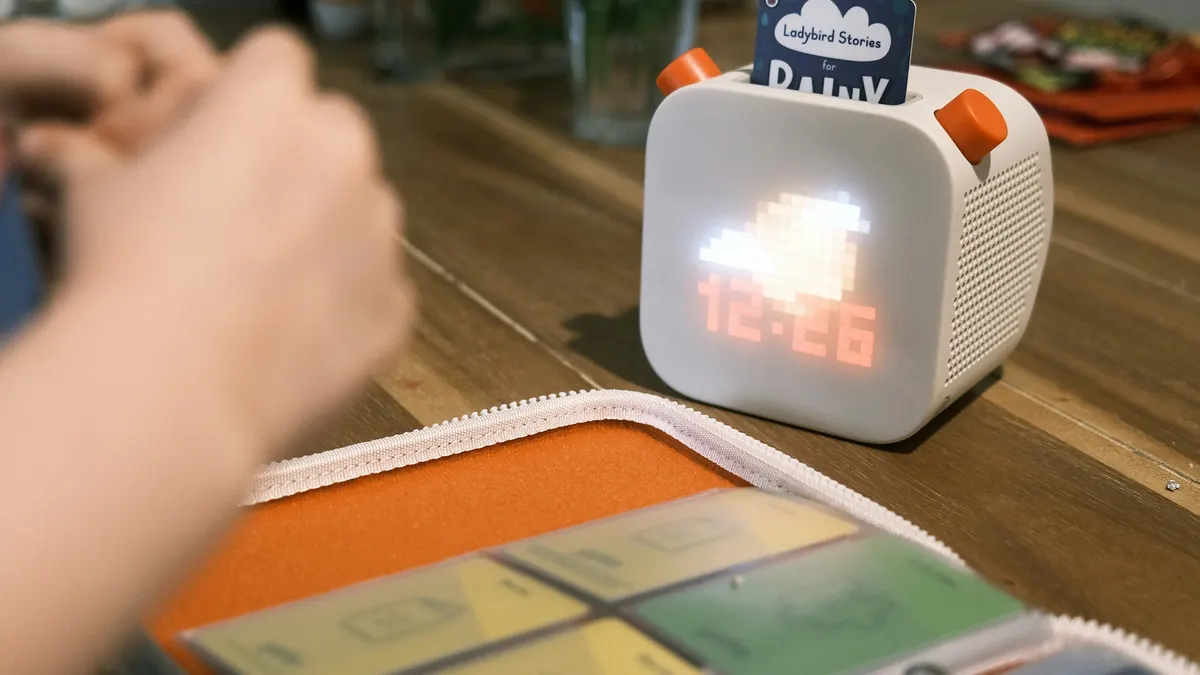
- Turn the player on and check it's on Wi‑Fi. On the clock face, red numbers mean it's connected and white means it isn't.
- Put in each card you want downloaded, or start it from the app, and let it play for a few seconds.
- Take all the cards out so nothing is playing and the player is back on its clock face.
- Plug it in to charge, still on Wi‑Fi, and leave it for a while.
You can watch progress in the app under Settings, then your player, then Audio Download Status. Yoto has made downloads more automatic lately, and players sometimes download while idle without being plugged in, but the steps above are still the most reliable.
Once they're downloaded, Yoto's own cards and your Make Your Own playlists play without Wi‑Fi. Yoto Radio, podcasts and anything you cast from your phone still need a connection.
Small things worth knowing
The orange instruction card in the box can become your first Make Your Own card. Save the instructions to your library in the app before you overwrite it, though, or you won't be able to put them back on that card. (Yoto's free audio has a copy if you lose them.) It makes a good first du'a card.
Cards go in any way round, upside down or back to front, which helps with toddlers. Don't hole-punch them to hang on a keyring. The electronics run around the whole edge of the card, so a hole is likely to break it.
Yoto's own cards are shared by everyone who owns them, so you can't edit them. If a card you've bought has one song with instruments on it, you can't take that track out, and you'll be skipping it every time. It's one of the reasons we check what we list track by track.
Repeat for memorising, a timer for bedtime
Two settings in the app make a real difference for Qur'an. Open whatever is playing on the player, and under the title you'll see a row of small icons. The two arrows in a loop are repeat: when they're lit orange, the card starts again from the beginning when it ends. Put the surah your child is learning on its own card, turn on repeat, and it keeps going for as long as they're listening.
Just to the right of repeat is the sleep timer, a clock with a "Z" above it. It turns the audio off after the time you choose, so a calm recitation at bedtime can carry on until your child is asleep and then stop. You have to set the timer each time you use it.
The right knob, and Yoto Radio
With nothing playing, pressing the right knob plays a shortcut. By default one press starts Yoto Daily, and a second press starts Yoto Radio by day or Yoto Sleep Radio at night. Yoto Radio plays music, so if your family keeps to voice-only audio, a curious child will find it quickly.
You can change both shortcuts. In the app, go to Settings, choose your player, and scroll down to Right Button Shortcuts. Daytime and nighttime have separate settings, so change both. The current Yoto beta, which you can switch on at the bottom of your player's settings, adds more shortcuts and more choices for what they do.
For everything else the buttons do, Yoto's own button guide is clear.
Waking up, and Fajr
The larger Gen 3 player makes a lovely sleep and wake clock for children. Its clock face and soft night light show them whether it's time to get up yet. The light isn't bright enough to be the only light in a room.
It works as an alarm clock too, if you'd like help waking for Fajr. On my Gen 3, alarms go off even when the player is switched off, because it turns itself on to play them. If you're relying on one, test it first, or keep the player plugged in so it stays on. Choose one of the built-in alarm sounds rather than the radio. I have a daily alarm set to the radio, and most days it doesn't connect in time to play anything. Remember too that Fajr moves through the year, so you'll need to change the alarm time every week or two.
If an alarm you no longer want keeps going off, turn it off in the app.
Once it's all set up, the fun part is choosing what goes on the cards. Everything we list is checked against our standard, and some of it goes into your Yoto library in one tap. Browse by age to find a first card.